FAQs
FAQs That Power Innovative IT Decisions & Everything You Need to Know About Alpha Innovations.
Alpha Innovations Frequently Asked Questions
What is a Managed Service Provider (MSP)?
An MSP is a company that remotely manages a customer’s IT infrastructure and end-user systems, typically on a proactive basis and under a subscription model.
What services does Alpha Innovations offer?
We provide a range of services including network monitoring, cybersecurity solutions, data backup and recovery, cloud services, and IT consulting.
How can an MSP benefit my business?
Partnering with an MSP can lead to cost savings, access to expert IT support, enhanced security, and improved operational efficiency, allowing you to focus on core business activities.
Is Alpha Innovations' support available 24/7?
Yes, we offer round-the-clock monitoring and support to ensure your IT systems are always operational and secure.
How does Alpha Innovations ensure data security?
We implement robust security measures including firewalls, intrusion detection systems, regular security audits, and employee training to protect your data.
What is the process for onboarding with Alpha Innovations?
Our onboarding process includes an initial assessment of your current IT infrastructure, planning and implementation of tailored solutions, and ongoing support to ensure a smooth transition.
Can Alpha Innovations assist with compliance requirements?
Yes, we help ensure that your IT systems comply with relevant industry regulations and standards, providing necessary documentation and support during audits.
What industries does Alpha Innovations serve?
We cater to a diverse range of industries including healthcare, finance, education, and manufacturing, tailoring our services to meet specific industry needs.
How does Alpha Innovations handle disaster recovery?
We develop comprehensive disaster recovery plans that include regular data backups, quick restoration protocols, and strategies to minimize downtime in the event of a disaster.
What is the cost structure for Alpha Innovations' services?
Our pricing is typically subscription-based, tailored to the specific services and support levels your business requires. We provide transparent pricing with no hidden fees.
How does Alpha Innovations stay current with technological advancements?
Our team continually engages in professional development and monitors emerging technologies to ensure we provide cutting-edge solutions to our clients.
Can Alpha Innovations support remote work setups?
Absolutely, we offer solutions to facilitate secure and efficient remote work environments, including VPN setup, cloud services, and remote desktop support.
What is Alpha Innovations' approach to proactive maintenance?
We conduct regular system checks, apply necessary updates, and monitor performance metrics to prevent issues before they arise, ensuring optimal system performance.
How does Alpha Innovations handle software licensing?
We manage software licenses to ensure compliance, track renewals, and recommend cost-effective licensing solutions tailored to your business needs.
What sets Alpha Innovations apart from other MSPs?
Our commitment to personalized service, industry expertise, proactive approach, and dedication to client success distinguish us from other providers.
How can I request support from Alpha Innovations?
Clients can request support through our dedicated support portal, via email, or by calling our support phone number.
Does Alpha Innovations offer training for our staff?
Yes, we provide training sessions to ensure your staff is well-versed in using new technologies and adhering to best practices for security and efficiency.
How does Alpha Innovations monitor network performance?
We utilize advanced monitoring tools to track network performance in real-time, identify potential issues, and implement solutions promptly to maintain optimal performance.
Can Alpha Innovations assist with hardware procurement?
Yes, we can recommend, source, and procure hardware that meets your business requirements, ensuring compatibility and cost-effectiveness.
What is Alpha Innovations' policy on data confidentiality?
We adhere to strict confidentiality agreements and implement security protocols to ensure that all client data remains private and protected.
Managed IT Services Frequently Asked Questions

Windows 10, and the upcoming Windows 11, are the only versions currently supported by Microsoft. This means they no longer provide patches for security for any earlier versions (unless you have paid for extended support of Windows 8.1). It is highly recommended that if you are using an older version, that you get with our team to find a path to a supported version that will keep your business and its data safe. Also, this will allow you to continue receiving the updates and security services provided by Microsoft.
Microsoft is still honoring the free upgrade promised to customer at the onset of the Windows 10 program. You can see if your computer will qualify by following this link: https://www.microsoft.com/en-us/software-download/windows10
Use Strong Passwords
An example of a strong password is “m#P52s@ap$V”. It is long, contains uppercase letters, lowercase letters, numbers, and special characters. It is a unique password created by a random password generator and it is easy to remember. Strong passwords should not contain personal information.
Use different passwords for different accounts. Never reuse passwords across sites and services.
Avoid storing passwords either digitally or on paper, as this information can be stolen by those with malicious motives.
Do not use passwords that are based on personal information that can be easily accessed or guessed.
Use Password Managers
By leveraging a password manager, you only need to remember one password, as the password manager stores and even creates passwords for your different accounts, automatically signing you in when you log on.
Use multi-factor authentication when available
Sometimes referred to as 2 Factor. PIN Numbers, Authenticator Tokens, and Biometrics, are examples of Multi-Factor Authentication.
When you login to a website or application, instead of going directly into your account, the platform will require you enter additional information, usually from another source such as a mobile device or your email, to validate that your login request is legitimate. Alpha strongly suggests the use of multi-factor authentication and would be happy to discuss implementing this protection for your business.

My computer does not turn on, what do I do now?
First check the computer’s power cord to make sure it is completely plugged into the wall socket. If you are using a plug strip, make sure it is completely plugged into the wall socket and that the power switch on the plug strip is turned on. Some plug strips also have a built-in circuit breaker which usually looks like a black or red button near the power switch. Check the breaker button or mechanism to reset the power strip and see if that solves the problem. Test the power outlet with another device to ensure the problem is not the outlet before proceeding with other steps. If another device powers on this could be a whole host of things best left to your support team.
What do I do when my computer crashes or is unresponsive?
There are many reasons why a computer may suddenly stop working or “freeze”. Most of the time there isn’t much that can be done. It is a fact of life that computer programs have become so complex that occasionally users will experience problems even when performing common tasks. When your computer no longer responds to keyboard commands your best bet is to restart the computer. A restart is best done via the start menu, generally located at the bottom left of your screen. If the computer is frozen or unresponsive you have no choice but to hold down on the power button until the power cuts. Wait 30 seconds and power it back on.
What do I do if my computer turns on but doesn’t load into Windows?
If your computer turns on and there is output to the monitor, but Windows fails to load or you are presented with a black screen with text indicating an issue with the Operating System (OS) or hard drives, there could be a physical/component issue. Using the power button, turn off your computer and wait a few seconds before turning it back on. If the issue persists there is a more profound issue. If this is the case, then contact Alpha Technologies, this is a job for the professionals.
If the computer boots to the login screen but won’t fully load to the operating system when you sign in with your username and password, try removing all the connected devices to your computer except for the monitor, keyboard, and mouse. Reboot the PC and try to login again. External devices and attached usb hard drives can cause the computer to delay during login. If the issue persists, contact the help desk.
There is no display on the monitor, what do I do now?
Make sure the monitor is on. If no power light (green or orange light) is seen on the monitor display, try pressing the power button until it comes on. If your computer monitor was on and you stepped away from the computer and upon returning it was black, it’s likely that the computer is asleep. Try moving your mouse, clicking the mouse buttons, and/or pressing any key (space bar) on the keyboard to wake it up. Make sure that the monitor is connected properly to the back of the computer.
What do I do if the image on my monitor is distorted or skewed?
You may receive a distorted image when the cable is loose or defective. Disconnect the video cable going from the back of the computer and verify that no pins are bent, burnt, or broken. Once verified re-connect the monitor cable.
I get a 'no signal input' message on my monitor, what do I do?
Verify that the monitor is properly connected in the both the back of the monitor, as well as to the computer. If the monitor appears to be connected properly, verify that a cable is not lose by disconnecting all cables that can be disconnected in the back of the monitor (generally the data cable cannot be disconnected). Next, disconnect the data cable connected to the back of the computer and then reconnect the cable. When connecting the cable in the back of the computer, ensure the cable connection is tight. Most Computers will also have screw ends that can be screwed in to hold the connector in place.
There are black borders on my monitor screen, what do I do?
If the resolution was recently changed it is possible for the monitor to not auto adjust or shift to the correct size. If this occurs, the resolution can be changed back to the original setting, or you can manually adjust the monitor. If a black border exists on the monitor, it can generally be resolved by manually adjusting the horizontal or vertical width. Because each monitor is different, the method of adjusting this setting will vary; consult your monitor documentation.
Why is my computer mouse acting erratically?
Users who have an optical mechanical mouse (most common mouse for desktop computers) are likely experiencing erratic behavior because the mouse is not clean or is dirty. If you’ve cleaned the mouse and continue to encounter issues, and it has worked in the past without any problem, it is likely time for a new one. One additional test that can be done to help determine if this is the case, is to connect the mouse to another computer. If the mouse works on a different device, there could be a problem with the connection port. This is a good time to contact support for assistance. If the mouse is still not working when tested on another device, it is recommended that a new mouse is in order.
The wheel on my mouse isn't working properly, what do I do?
If you’re running any version of Microsoft Windows and are encountering issues with the mouse wheel, first attempt to adjust the mouse settings through the Mouse Properties window. This window can be accessed by opening the Control Panel and double-clicking the Mouse icon. If problems persist, contact your support team.
How can I clean my keyboard?
The most common way to clean your keyboard is to blow out the debris with either an air compressor, or a can of compressed air that can be purchased at most local stores. If that doesn’t work, the keys on a keyboard are only clipped on and can easily be removed with a thin object, such as a butter knife, to carefully pop them off. This will allow you to clean under the keys as well as the keys themselves (make sure you remember where they went!).
How do I get into my computer’s safe mode?
On your keyboard, press the Windows logo key + R. Type MSCONFIG in the Open box and then select OK. Select the BOOT tab. Under the BOOT options, clear the SAFE BOOT checkbox. For additional help, the Microsoft guide can be found: Microsoft Safe Mode Guide
I can't delete a file because it is being used by Windows, what do I do?
Close all programs running on the computer and try again. If you are still unable to delete the file it may require a restart of the system. If, after a system reboot, you are still unable to delete the file, it may be a critical systems file or something virus/malware related. We highly recommend reporting this to your support team.
How can I update my Windows operating system?
In most cases, your computer should be set to automatically update when a new update becomes available. If you wish to manually update your windows machine, follow the instruction below:
To stay up to date, select Start > Settings > Update & Security > Windows Update > Windows Update, and then select Check for updates or click here: Check For Updates
This link above takes you directly to the settings panel on your Windows 10 machine. If a feature update is available for your device, it will appear separately on the Windows Update page. To install it, select Download and install now.
NOTE: If you experience a FAILED Update, we recommend restarting it and trying again. If there are continued failures, or you wish to ensure your updates are configured to install automatically, contact your support team.
Is it safe to turn off a Windows computer without doing a shut down?
Users should not simply press the power button as a normal procedure to shutting down a PC unless there is an issue with the computer. Microsoft has included the shutdown feature because it enables a computer to go through all the necessary steps that are required before turning off the computer. In fact, many versions of Microsoft Windows will check the computer for any problems if the computer is not shut down properly.
How can I recover a file from the recycle bin?
Double click (or right click) the RECYCLE BIN icon on your desktop. Here you will see all the files within your recycle bin. Select the files you wish to recover, right click, and choose RESTORE.
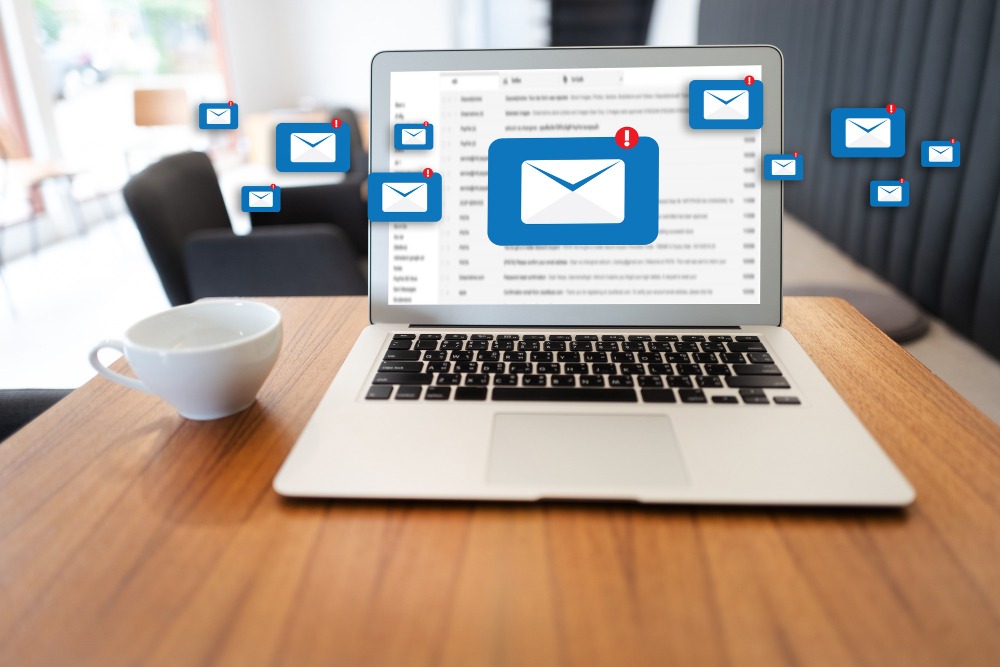
I am unable to send or receive email?
Verify that your computer can see/connect to the Internet and/or other computers to ensure that your computer is not encountering a connection issue, which would be causing your e-mail issue. If you are using a mail client application, like Outlook, try to login to the web application for your company through your Web Browser (Microsoft Edge, Google Chrome, Mozilla FireFox, etc.). If you can reach your email via the Web Browser, the problem could be the client application. After an attempted restart, contact your support team for further troubleshooting. Keep in mind if you can reach you web connector you can work while you wait for support to resolve the issue, but some functionality and/or folders may be limited.
I can't receive any email attachments.
If the e-mail box is full of other e-mail messages, and/or your storage space is only a few megabytes, it’s possible that the attachment being sent cannot be received. Often, if this problem is occurring, the person sending the e-mail should get a response back from your e-mail server indicating that your mailbox is full and/or has exceeded its allocated size. Because computer viruses and other malware are best distributed through e-mail, many e-mail service providers, companies, and e-mail programs prevent certain types of file extensions from being distributed or received through e-mail. For example, Microsoft Outlook protects its users by automatically disabling certain file extension types from being received in e-mail. If you find the file being sent to you is legit and not malicious, work with your support team to determine if a file clean-up needs to be conducted and/or the attachment size restrictions needs to be modified.
Are spaces allowed in email addresses?
Just like an Internet URL no spaces are allowed in an e-mail address. However, names can be broken up using a period; for example, John Smith may have an e-mail address: john.smith@example.com or john.s@example.com.
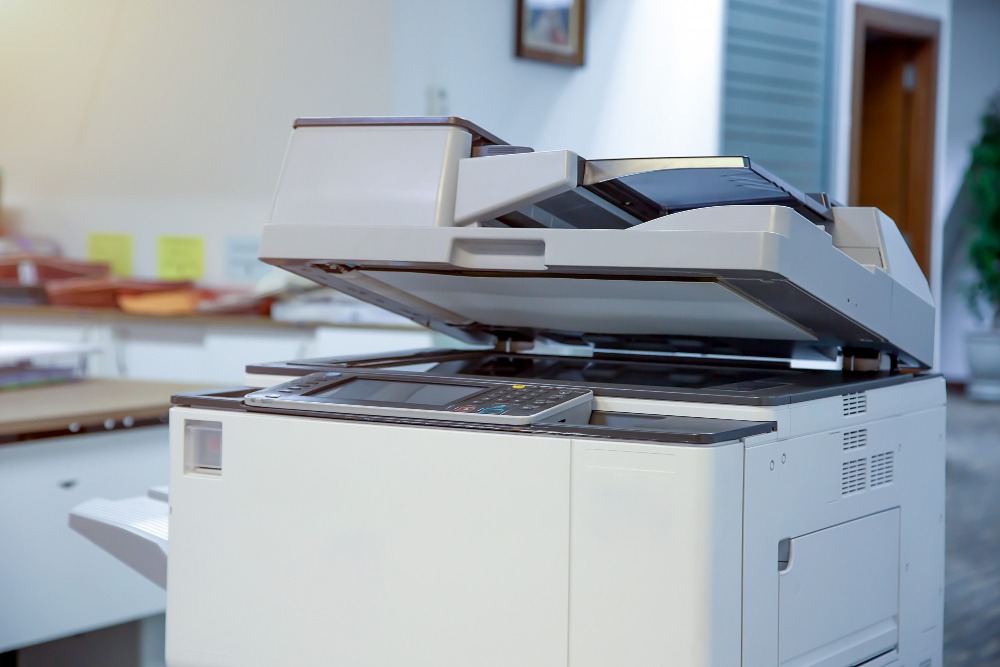
My printer is printing smudged/distorted pages, what can I do?
When printing on untraditional paper your printer may experience smudges, un-even or crooked text, and/or text that runs off the edges of the paper. Your printer may be printing fuzzy, blurry, and/or other faint text because of dirty print heads. All modern printers have some type of printer cleaning, self-test, and/or diagnostic mode that can be performed to check and clean the print heads and other internal equipment used to print.
How do I fix a paper jam?
There are few places to check for this matter. First, make sure to turn off the printer. Then start with Inspecting the location, or tray, the printed paper ejects to. If the stuck paper is visible, manually remove it. Next, try removing all paper trays and any paper that may be stuck between the tray and the printer. If the stuck paper is visible, manually remove it. Once last place to check is to open the printer door that allows you access to the printer ink cartridges or toner and look for any stuck paper. If the stuck paper is visible, manually remove it. Turn the printer back on. If none of these fix the problem, contact your support team for further assistance.
I lost my printer installation disk; how can I install my printer?
Thankfully a missing printer installation disk is not the end of the world and will not require you to wait until a new disk can be sent to you. In today’s world, all printer and other hardware manufacturers are providing downloads from their manufacturer websites. You will often find software programs and drivers that are included for all of their products.
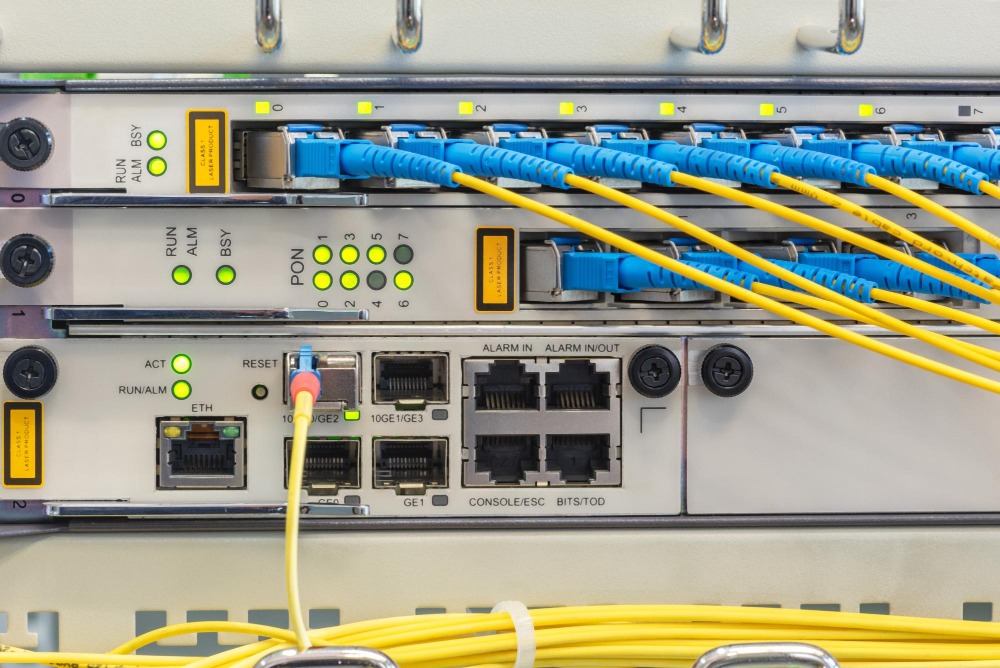
I can't connect to my network drive anymore, what can I do?
This is generally the result of no connection to the network drive, or a permissions (password) issue. Verify you have connection to the internet, followed by connections to the device/server. that is hosting the network drive. If the drive has a red X on it, double click the drive and enter any credentials if prompted. If you have recently changed a password this could have affected this drive mapping. Further troubleshooting should be done by your support team.
How do I map a network drive?
Open File Explorer from the taskbar or the Start menu, or press the Windows logo key + E.
Select This PC from the left pane. Then, on the COMPUTER tab, select MAP NETWORK DRIVE.
In the Drive list, select a drive letter. (Any available letter will do.)
In the Folder box, type the path of the folder or computer, or select Browse to find the folder or computer. To connect each time you log on to your PC, select the RECONNECT AT SIGN-IN check box.
Select FINISH.
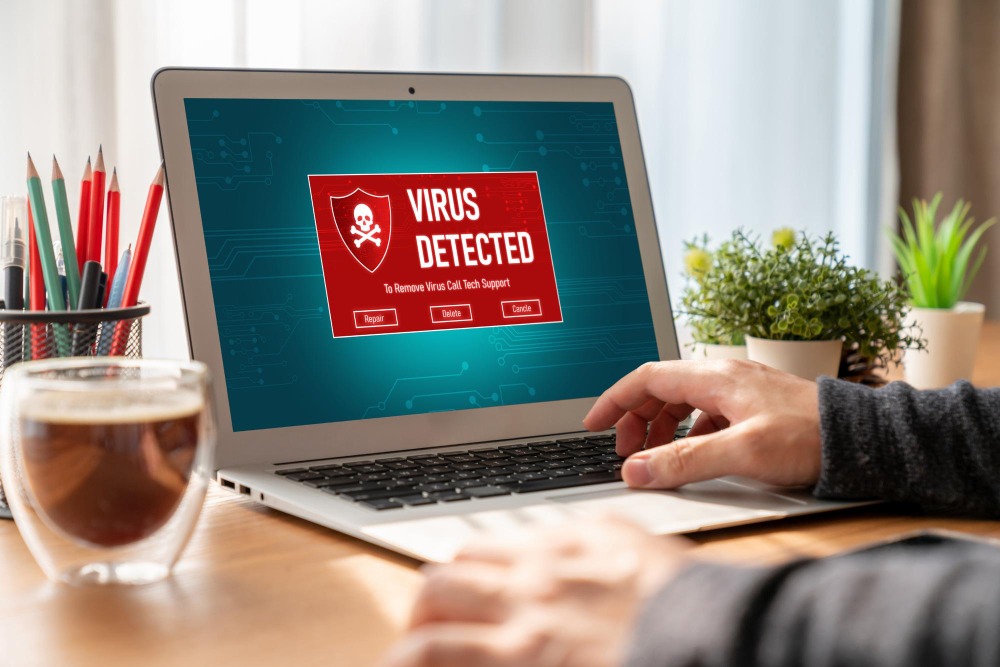
What is a computer virus?
A computer virus is a software program that has been intentionally created to cause a user grief, spread to other computers, and/or destroy data on an individual’s computer. To help prevent a computer from becoming infected by a virus, software developers have developed antivirus programs that stay active on the computer helping to protect it. Contact your support team to see what antivirus options are available within your company. If you do not have an antivirus option available, please contact an Alpha Sales representative so that we can help get you the protection you need!
Does Windows come with a virus protection program?
Windows Security is built-in to Windows 10 and includes a antivirus program called Microsoft Defender Antivirus. If you have another antivirus app installed and turned on, Microsoft Defender Antivirus will turn off automatically. While the free version provided is adequate, there are antivirus products that offer better performance and could be a stronger solution for your company. Contact the Alpha sales team for more information and pricing.
If I format or erase my hard drive, will it remove a virus?
If your computer is infected with a virus, formatting or erasing the hard disk drive and starting over will almost always remove any type of virus. However, keep in mind if backups have been made that contain the virus, other media or drives connected to the computer have a virus, your computer is connected to another computer on a network with a virus, and/or the virus is stored on some other type of software you use with your computer…it can become re-infected if not properly protected. Virus makers have used the windows recovery partition to hide their virus in case you reset or reload your machine using this. Should you suspect this is the case contact your support team for assistance.
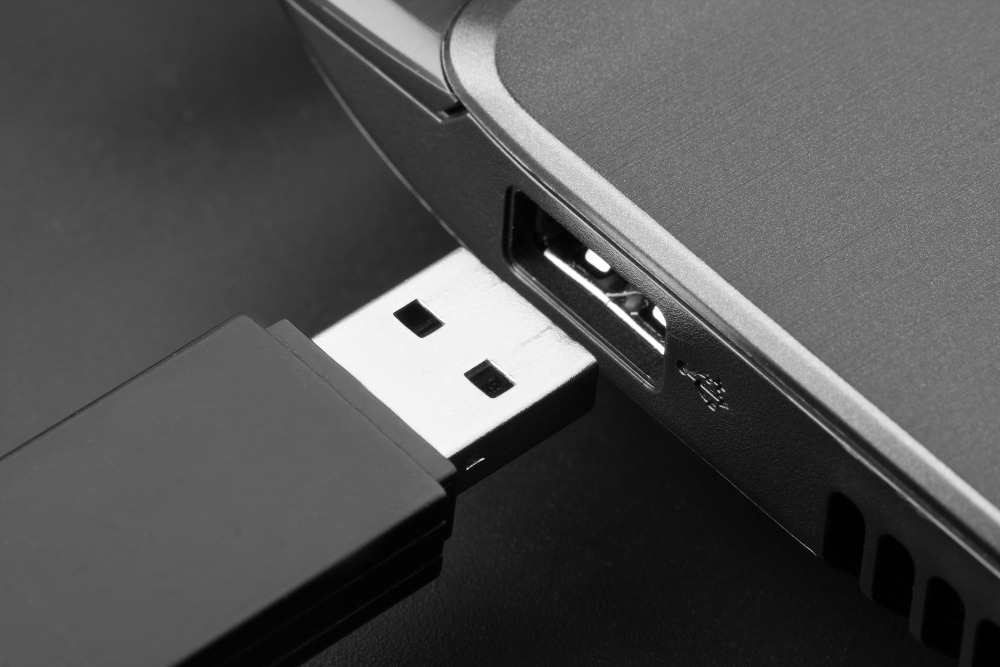
If your printer/mouse/keyboard or other USB devices stop or do not function when plugged in follow these steps after restart:
Download the Windows USB Troubleshooter from Microsoft.
Double-click the WinUSB.diagcab to launch the experience.
Click the Next button.
The utility will detect and prompt you to select the device you want to fix. In this case, a USB drive, but it can fix other peripherals, such as USB audio and USB printer.
Click the Next button.
Important: The troubleshooter requires .NET Framework 3.5 to work correctly, if it’s not already on your device, you’ll be prompted to download and install the feature automatically.
Click the Close button.
After completing the steps, the Windows USB Troubleshooter will check and attempt to fix any issues, including:
USB class filter was not recognized.
USB device is not recognized.
USB printer device is not printing.
USB storage device cannot be ejected.
Windows Update is configured to never update drivers.
While a rare occurrence, the USB slots can go bad in a device as well as the USB cable. Replace the USB cable or move the device to an unused USB port or to one that has a known working device to ensure the port is not at fault. This could mean the motherboard or main system is in a failing state in general and should be mentioned to your support staff.

When all else fails, restart.
A great deal of computer problems can be corrected with a simple restart of the computer. Ensure all your important documents are saved before you proceed to avoid any loss of work. Restart your computer by using the start menu and choosing the restart option. Check to see if the issue is resolved before moving to the next steps or contacting your support team.
Let’s Innovate!

Want to talk to an expert?
Alpha Innovations is committed to protecting your data. Please review our Privacy Policy for information on how Alpha handles personal data and your rights concerning it. By submitting this form, you agree to the storing and processing of your data by Alpha as described in the Privacy Policy.
"*" indicates required fields

Alpha Innovations simplifies complex technology into practical business solutions. We manage IT, communications, security, and backup systems – so you can focus on growth while staying fast, secure, and resilient in a changing market.
BUSINESS INFO
Mon-Fri:
8:00AM- 5:00PM
Sat: Closed
Sun: Closed
Phone:
(304) • 201 • 7485 – Helpdesk
(304) • 201 • 2616 – Sales
E-mail:
salesgroup@myalphainnovations.com
marketing@myalphainnovations.com
NEWSLETTER/SOCIAL MEDIA
"*" indicates required fields
HEADQUARTERS
DATA CENTER 1
Copyright © 2025 Alpha Innovations, All Rights Reserved | Privacy Policy | Cookie Policy | Site Map | MSA